📞 Outbound Call Limiter
Support Team Troubleshooting Guide
Production: https://outbound-fitness-international.solutions-2bd.workers.dev
📋 Table of Contents
1. System Overview
The Outbound Call Limiter is a Cloudflare Workers-based system that enforces per-phone-number daily call limits. It integrates with Telnyx telephony to manage outbound calls from fitness clubs.
Key Capabilities
- ✅ Process CSV files with phone numbers and daily call limits
- ✅ Check if a phone number can be called based on current day's usage
- ✅ Automatically reset call counts at midnight EST
- ✅ Handle Telnyx webhooks for call control
- ✅ Support zero-downtime CSV uploads using versioned tables
2. Architecture & Components
Cloudflare Resources
| Resource | Name | Purpose |
|---|---|---|
| Worker | outbound-fitness-international | Main application logic |
| D1 Database | outbound_limiter_db | Stores phone numbers, limits, and call logs |
| D1 Database | inbound-fitness-international | Looks up club phone numbers |
| R2 Bucket | fitness-assets | Stores CSV uploads and static assets |
| KV Namespace | PROGRESS_KV | Tracks CSV upload progress |
| Queue | csv-split-queue | Splits large CSV files into chunks |
| Queue | csv-processing-queue | Processes CSV chunks in parallel |
Database Schema
Main Tables
outbound_numbers_MMDD_N- Versioned phone number tables (e.g., outbound_numbers_1211_1)active_table- JSON array tracking which versioned tables are activecall_logs- History of all call attempts (allowed and blocked)upload_history- Tracks all CSV uploads and their status
Data Flow
3. API Endpoints Reference
/outbound/upload?type={daily|delta}
Purpose: Upload CSV file with phone numbers and call limits
Auth: Bearer token required (UPLOAD_BEARER_TOKEN)
Body: multipart/form-data with "file" field
Parameters
type=daily- Creates new versioned table (recommended for daily updates)type=delta- Creates new versioned table (same behavior as daily)
Example Request
Success Response (200)
🔧 Troubleshooting Steps
- 401 Unauthorized: Verify bearer token is correct. Check env.UPLOAD_BEARER_TOKEN in wrangler.toml
- 400 Bad Request - "Failed to extract CSV":
- Ensure Content-Type is multipart/form-data
- Verify field name is "file"
- Check file is valid CSV format
- File not processing: Check queue status:
wrangler tail --config outbound-wrangler.toml --format pretty
- CSV format issues: Verify headers are "phone" and "limit" (case-insensitive)
/outbound/check?phone={number}&from={caller}
Purpose: Check if a phone number can be called today
Auth: None (public endpoint)
Parameters
- REQUIRED
phone- Phone number to check (10 digits) - OPTIONAL
from- Calling number (for logging)
Example Request
Success Response - Call Allowed (200)
Success Response - Call Blocked (200)
Success Response - Number Not in Database (200)
🔧 Troubleshooting Steps
- 400 Bad Request - "Missing phone parameter": Ensure ?phone= is in URL
- 400 Bad Request - "Invalid phone number format":
- Phone must be 10 or 11 digits
- System accepts: 5551234567, 15551234567, +15551234567, (555)123-4567
- Normalized to 10 digits internally
- All numbers showing "not in database":
- Check if CSV upload completed successfully
- Query active_table to see which tables are active:
wrangler d1 execute outbound_limiter_db --config outbound-wrangler.toml \ --command "SELECT * FROM active_table"
- Verify table has data:
wrangler d1 execute outbound_limiter_db --config outbound-wrangler.toml \ --command "SELECT COUNT(*) FROM outbound_numbers_1211_1"
- Counter not resetting at midnight:
- System uses EST timezone (UTC-5)
- Check call_logs table for today's date:
wrangler d1 execute outbound_limiter_db --config outbound-wrangler.toml \ --command "SELECT date(called_at) as date, COUNT(*) FROM call_logs GROUP BY date(called_at) ORDER BY date DESC LIMIT 5"
/outbound/stats
Purpose: Get system statistics
Auth: None
Success Response (200)
🔧 Troubleshooting Steps
- 500 Error - "Unable to query active tables": Active table doesn't exist or is corrupt. Check active_table metadata
- total_numbers is 0: No data loaded. Verify CSV upload completed
/outbound/delete
Purpose: Remove a phone number from active tables
Auth: Bearer token required
Body: JSON with phone number
Example Request
Success Response (200)
🔧 Troubleshooting Steps
- 404 Not Found: Phone number not in any active table
- 401 Unauthorized: Missing or invalid bearer token
/telnyx/webhook
Purpose: Receive webhooks from Telnyx for call events
Auth: None (Telnyx sends unsigned webhooks)
Handled Events
call.initiated(state=parked) - New inbound call, check limits and place outbound callcall.answered- Outbound call answered, bridge to parked call or speak rejection messagecall.hangup- Call ended, handle failed calls by speaking message to parked callercall.speak.ended- Message finished, hang up the call
🔧 Troubleshooting Steps
- Calls not being placed:
- Check worker logs for webhook payloads:
wrangler tail --config outbound-wrangler.toml --format pretty
- Verify TELNYX_CONNECTION_ID is correct in wrangler.toml
- Verify TELNYX_API_KEY secret is set (not visible in logs)
- Check worker logs for webhook payloads:
- Calls not bridging:
- Check parked_call_id parameter in webhook URL
- Verify call.answered webhook includes parked_call_id query param
- Wrong rejection message:
- Check query parameters: limit_reached=true, rate_limit=true, unavailable=true
- Each triggers different speak message function
- Club lookup failing:
- Check FITNESS_DB has clubs table with forwarding_number and phone columns
- Query: SELECT phone FROM clubs WHERE forwarding_number = ?
4. Core Functions Breakdown
Main Entry Points
fetch(request, env, ctx)
Purpose: Main HTTP request handler
Routes:
- GET / → serveHomeUI()
- GET /outbound → serveUploadUI()
- POST /outbound/upload → handleCSVUpload()
- GET /outbound/check → checkLimit()
- GET /outbound/stats → getStats()
- DELETE /outbound/delete → handleDeletePhone()
- POST /telnyx/webhook → handleTelnyxWebhook()
queue(batch, env)
Purpose: Handle messages from Cloudflare Queues
Queues:
- csv-split-queue → handleSplitQueue()
- csv-processing-queue → handleProcessQueue()
scheduled(event, env, ctx)
Purpose: Daily cleanup task (runs at midnight UTC via cron)
What it does:
- Deletes all files in R2 bucket uploads/ directory
- CSV chunks only needed during processing, safe to delete after
CSV Upload Functions
handleCSVUpload(request, env, corsHeaders)
Purpose: Receives CSV file and initiates processing pipeline
Steps:
- Parse multipart/form-data to extract CSV file
- Generate unique uploadId (UUID)
- Store CSV in R2: uploads/{uploadId}/original.csv
- Create upload_history record with status="processing"
- Send message to csv-split-queue
handleSplitQueue(batch, env)
Purpose: Split large CSV into 100K-row chunks for parallel processing
Steps:
- Fetch CSV from R2 (uploads/{uploadId}/original.csv)
- Parse CSV and split into chunks of 100K rows each
- Generate next available table name (e.g., outbound_numbers_1211_1)
- Create new empty versioned table
- Store each chunk in R2: uploads/{uploadId}/chunk-{N}.csv
- Send chunk messages to csv-processing-queue
🔧 Troubleshooting Split Queue
- File not found in R2: Check ASSETS bucket has uploads/ prefix permissions
- Table already exists error: Function retries with next increment number automatically
- CSV parsing errors: Check for:
- Missing headers (must have "phone" and "limit")
- Invalid CSV structure (quotes, commas in data)
handleProcessQueue(batch, env)
Purpose: Process individual CSV chunks in parallel
Steps:
- Check if chunk already processed (prevents duplicates)
- Fetch chunk from R2: uploads/{uploadId}/chunk-{N}.csv
- For FIRST chunk only: Add new table to active_table array immediately
- Parse chunk and normalize phone numbers
- Batch insert records into versioned table (INSERT OR REPLACE)
- Update upload_history progress counters
- Mark chunk as processed in KV
- Delete chunk file from R2
- For LAST chunk: Mark upload as "completed"
🔧 Troubleshooting Process Queue
- Chunks stuck in retry loop:
- Check worker logs for SQL errors
- Verify table exists: SELECT name FROM sqlite_master WHERE type='table'
- Check D1 rate limits (50 writes/sec per database)
- Upload never completes:
- Check chunk_progress table or KV for processed chunks
- Compare processed count vs totalChunks
- Look for dead letter queue messages
- Duplicate data:
- Check KV processed:{uploadId}:{chunkIndex} keys
- Verify INSERT OR REPLACE is being used (not INSERT)
Call Limit Functions
checkLimit(db, url, headers)
Purpose: Determine if a phone number can be called today
Steps:
- Normalize phone number (remove formatting, ensure 10 digits)
- Query active tables (2 most recent) for phone number
- If NOT found: Log as allowed, return allowed=true (unlimited)
- If found: Count today's allowed calls from call_logs (EST timezone)
- Compare count vs call_limit
- Log decision to call_logs (allowed=1 or 0)
- Return decision with remaining quota
🔧 Troubleshooting checkLimit
- All numbers returning allowed=true:
- Phone numbers not in database (check active tables)
- Normalization mismatch (check phone format in database vs request)
- Counter not accurate:
- Check call_logs for duplicate entries
- Verify date filtering is working:
SELECT date(called_at), COUNT(*) FROM call_logs WHERE to_number = '5551234567' GROUP BY date(called_at)
- Counter not resetting:
- Verify EST timezone calculation (check current UTC time vs EST time)
- Check date() function is using correct timezone
Telnyx Integration Functions
handleTelnyxWebhook(env, request, url, headers)
Purpose: Process Telnyx call events and control calls
Main Flow for call.initiated (parked):
- Extract parkedCallId, destinationNumber, callerNumber from webhook
- Look up club's real phone in FITNESS_DB using forwarding_number
- Normalize destination number and check call limit
- If limit reached: Reject call (speak limit message)
- If allowed: Place outbound call via makeTelnyxCall()
- Log decision to call_logs
Main Flow for call.answered:
- Check query params: rate_limit, limit_reached, unavailable
- If rejection param present: Speak appropriate message
- If parked_call_id present: Bridge calls together
Main Flow for call.hangup:
- Check if outbound call failed (hangup_cause != normal_clearing)
- If failed and parked_call_id present: Answer parked call and speak unavailable message
🔧 Troubleshooting Telnyx Webhooks
- Webhooks not received:
- Check Telnyx dashboard webhook URL is correct
- Test webhook manually: POST to /telnyx/webhook with sample payload
- Check firewall/security settings (Telnyx IPs not blocked)
- Calls not bridging:
- Verify parked_call_id is passed in webhook URL
- Check bridgeTelnyxCalls() logs for API errors
- Verify both call_control_ids are valid
- Rejection messages not playing:
- Check query params in webhook callback URL
- Verify speakRejectionMessage/speakRateLimitMessage/speakUnavailableMessage functions
- Check Telnyx API key has speak permissions
- Club lookup failing:
- Check FITNESS_DB connection binding
- Verify clubs table structure:
wrangler d1 execute inbound-fitness-international --config outbound-wrangler.toml \ --command "SELECT * FROM clubs LIMIT 5"
makeTelnyxCall(apiKey, connectionId, toNumber, parkedCallId, fromNumber, workerUrl)
Purpose: Place outbound call via Telnyx API
Returns: Call control data including call_control_id
Error Handling: Sets isRateLimitError flag if status=429
bridgeTelnyxCalls(apiKey, callControlId, targetCallControlId)
Purpose: Connect two calls together
API: POST /v2/calls/{callControlId}/actions/bridge
rejectTelnyxCall(apiKey, callControlId, reason)
Purpose: Answer call and speak limit reached message
Webhook: Includes ?limit_reached=true to trigger speakRejectionMessage()
speakRejectionMessage(apiKey, callControlId)
Message: "Sorry, you've reached the maximum number of times you can call this number today. Please try again tomorrow."
speakRateLimitMessage(apiKey, callControlId)
Message: "We're experiencing high call volume. Please try your call again in a few moments."
speakUnavailableMessage(apiKey, callControlId)
Message: "The called party is temporarily unavailable. Please try again later."
Utility Functions
normalizePhone(phone)
Purpose: Convert any phone format to 10 digits
Accepts: 5551234567, 15551234567, +15551234567, (555)123-4567
Returns: 5551234567 (10 digits) or null if invalid
validateBearerToken(request, expectedToken)
Purpose: Verify Authorization header has correct bearer token
Header format: Authorization: Bearer YOUR_TOKEN
getActiveTableNames(db)
Purpose: Retrieve JSON array of active table names from active_table
Returns: Array like ["outbound_numbers_1211_1", "outbound_numbers_1211_2"]
switchActiveTable(db, newTableName)
Purpose: Add new table to active_table array and cleanup old tables
Logic:
- Get current active tables
- Drop tables from different days (different MMDD)
- Keep max 2 tables from same day
- Update active_table with new JSON array
getVersionedTableName(increment)
Purpose: Generate table name like outbound_numbers_1211_1
Format: outbound_numbers_{MMDD}_{increment}
getNextTableIncrement(db)
Purpose: Find next available increment number for today
Example: If outbound_numbers_1211_1 and outbound_numbers_1211_2 exist, returns 3
5. Common Issues & Solutions
Issue 1: CSV Upload Not Processing
- Check upload_history table for status:
wrangler d1 execute outbound_limiter_db --config outbound-wrangler.toml \ --command "SELECT * FROM upload_history ORDER BY uploaded_at DESC LIMIT 5"
- If status="processing" for >5 minutes, check queue messages:
wrangler tail --config outbound-wrangler.toml --format pretty
- Check R2 for CSV files:
wrangler r2 object list fitness-assets --config outbound-wrangler.toml --prefix uploads/
- Check KV for progress:
wrangler kv:key list --namespace-id=326282fe83d546699bcca792a343de59
- Queue consumer not running (check wrangler.toml has queue bindings)
- D1 database offline or rate limited
- CSV parsing error (invalid format, encoding issues)
- Worker hitting CPU time limit (>30 seconds)
- Retry upload with smaller file (test with 1000 rows)
- Check worker logs for specific error messages
- Verify queue consumers are deployed:
wrangler deploy --config outbound-wrangler.toml
Issue 2: Phone Numbers Not Being Found
- Check which tables are active:
wrangler d1 execute outbound_limiter_db --config outbound-wrangler.toml \ --command "SELECT * FROM active_table WHERE id=1"
- Check if phone exists in active table:
wrangler d1 execute outbound_limiter_db --config outbound-wrangler.toml \ --command "SELECT * FROM outbound_numbers_1211_1 WHERE phone='5551234567'"
- Check phone normalization:
- Customer sends: (555) 123-4567
- System normalizes to: 5551234567
- Database may have: +15551234567
- Phone format mismatch (database has +1 prefix, query doesn't)
- CSV upload not completed
- active_table points to wrong table
- Verify normalizePhone() function handles all formats
- Re-upload CSV with correct phone format (10 digits, no +1)
- Manually fix active_table if needed:
wrangler d1 execute outbound_limiter_db --config outbound-wrangler.toml \ --command "UPDATE active_table SET table_name='[\"outbound_numbers_1211_1\"]' WHERE id=1"
Issue 3: Call Counters Not Resetting at Midnight
- Check current time vs EST time:
// Current UTC time date -u // EST time (UTC-5) TZ='America/New_York' date
- Check call_logs to see when counts are dated:
wrangler d1 execute outbound_limiter_db --config outbound-wrangler.toml \ --command "SELECT to_number, date(called_at) as call_date, COUNT(*) FROM call_logs WHERE to_number='5551234567' GROUP BY date(called_at) ORDER BY call_date DESC"
- Verify timezone offset calculation in checkLimit() function
- Timezone calculation error (EST offset not applied correctly)
- date() function using UTC instead of EST
- Call logs not being recorded with correct timestamp
- Verify EST offset: -5 hours from UTC (or -4 during DST)
- Check date filtering query in checkLimit():
WHERE date(called_at) = date('today')Should use EST-adjusted date
Issue 4: Calls Not Bridging (No Audio)
- Check worker logs for bridge API calls:
wrangler tail --config outbound-wrangler.toml --format pretty | grep bridge
- Verify call.answered webhook includes parked_call_id parameter
- Check Telnyx dashboard for call legs and bridge status
- parked_call_id not passed in webhook URL
- Bridge API call failing (invalid call_control_id)
- One call leg hung up before bridge completed
- Verify webhook URL format in makeTelnyxCall():
const webhookUrl = `${workerUrl}/telnyx/webhook?parked_call_id=${parkedCallId}`;
- Check both call_control_ids are valid and active
- Add more logging to bridgeTelnyxCalls() function
Issue 5: Wrong Rejection Message
- Check webhook query parameters in logs
- Verify which speak function is being called
- Check call.answered event handler logic
?rate_limit=true→ "High call volume" message?limit_reached=true→ "Maximum number of calls" message?unavailable=true→ "Temporarily unavailable" message
- Verify rejectTelnyxCall() sets correct webhook URL
- Check if/else logic in call.answered handler
- Test each message type manually
Issue 6: High D1 Database Latency
- Check D1 metrics in Cloudflare dashboard
- Look for slow queries in logs
- Check table sizes:
wrangler d1 execute outbound_limiter_db --config outbound-wrangler.toml \ --command "SELECT name, COUNT(*) FROM sqlite_master sm JOIN pragma_table_info(sm.name) WHERE type='table' GROUP BY name"
- Large call_logs table (millions of rows)
- Missing indexes on frequently queried columns
- Multiple active tables being queried sequentially
- Add index on call_logs(to_number, called_at):
wrangler d1 execute outbound_limiter_db --config outbound-wrangler.toml \ --command "CREATE INDEX IF NOT EXISTS idx_call_logs_number_date ON call_logs(to_number, called_at)"
- Archive old call_logs data (move to R2 or separate table)
- Consider pagination for stats queries
6. Monitoring & Debugging
View Live Logs
This shows real-time logs from the worker including:
- HTTP requests and responses
- Queue messages being processed
- Database queries
- Errors and exceptions
Query Database Directly
Check Active Tables
Count Phone Numbers
Check Recent Call Logs
Find Phone Number Across All Tables
Check Upload History
Check Queue Status
List Queue Consumers
View Queue Messages (if accessible)
Check R2 Storage
List CSV Uploads
Download CSV File
Check KV Store
List All Keys
Get Upload Progress
Cloudflare Dashboard
Monitor worker metrics in Cloudflare dashboard:
- Workers & Pages → outbound-fitness-international → Metrics
- View: Requests per second, error rate, CPU time, success rate
- D1 → outbound_limiter_db → Metrics
- View: Query latency, queries per second, storage usage
Health Check Endpoints
Test system health with these quick checks:
1. Worker Responding
Should return HTML home page
2. Database Connected
Should return JSON with total_numbers, at_limit, etc.
3. Check Limit Working
Should return JSON with allowed, call_limit, etc.
Debug Mode
Add console.log statements to worker code for debugging:
Then view logs with wrangler tail
7. Accessing Workers in Cloudflare Dashboard
Overview
The Outbound Call Limiter has two separate worker deployments that can be managed through the Cloudflare dashboard:
- Production: outbound-fitness-international
- Development: outbound-fitness-international-dev
Locating Your Workers
Step 1: Navigate to Workers & Pages
- Log in to Cloudflare Dashboard
- Select your account
- Click Workers & Pages in the left sidebar
- You'll see both workers listed:
- outbound-fitness-international (Production)
- outbound-fitness-international-dev (Development)
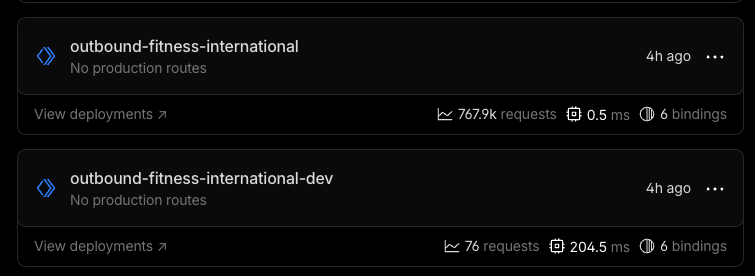
Workers list showing dev and prod environments
Viewing and Editing Worker Code
Step 2: Access the Worker Editor
- Click on the worker name (e.g., outbound-fitness-international)
- Click the "Edit Code" button in the top right
- The code editor will open showing the current deployed worker.js file
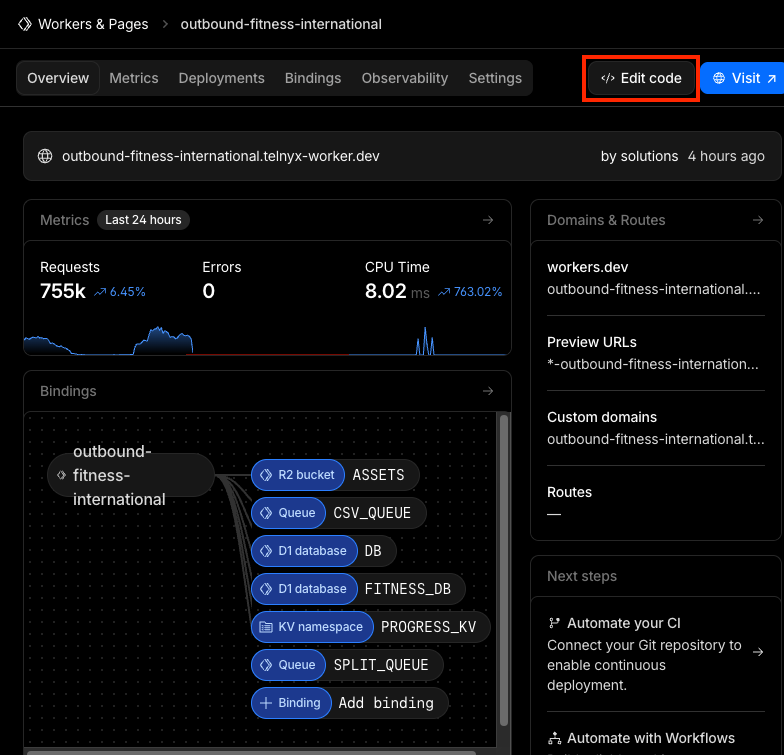
Click "Edit Code" to view or modify the worker
What You Can Do in the Editor
- ✅ View the current deployed code
- ✅ Search through the code (Ctrl+F / Cmd+F)
- ✅ Make quick hotfixes (emergency only)
- ✅ Test changes with the "Save and Deploy" button
- ✅ View console logs in real-time
Version History and Rollback
Step 3: Access Deployment History
- From the worker overview page, click the "Deployments" tab
- You'll see a list of all previous deployments with:
- Version ID (e.g., cb7a4cb8-c86e-4722-985f-5227f1ace532)
- Deployment date and time
- Who deployed it
- Each deployment has a "..." menu on the right side
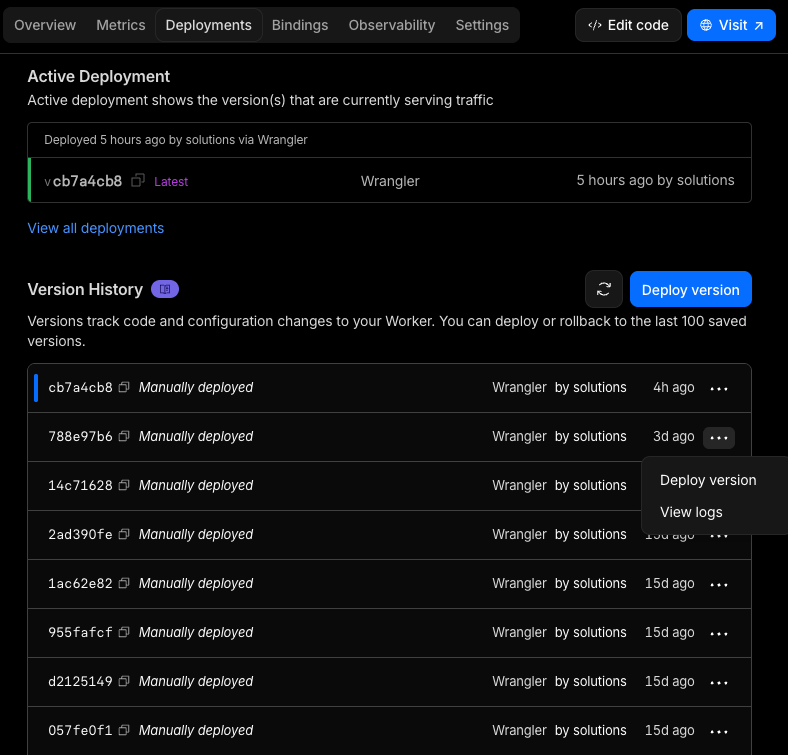
Version history with rollback option
Rolling Back to a Previous Version
- Find the version you want to rollback to
- Click the "..." menu next to that version
- Select "Deploy version"
- Confirm the deployment
- Always note the current version ID before rolling back
- Check the deployment date to ensure you're selecting the right version
- Test in dev environment first if possible
- Monitor logs immediately after rollback
When to Use Dashboard vs. Wrangler CLI
| Task | Use Dashboard | Use Wrangler CLI |
|---|---|---|
| View current code | ✅ Quick and easy | ❌ Requires local files |
| Emergency hotfix | ✅ Fast for simple fixes | ⚠️ Better for tested changes |
| Rollback deployment | ✅ Visual interface, easy | ⚠️ Requires version ID |
| Regular deployments | ❌ No version control | ✅ Recommended approach |
| View logs | ✅ Real-time in editor | ✅ More detailed with tail |
| View metrics | ✅ Built-in analytics | ❌ Not available |
Common Dashboard Tasks
Viewing Real-Time Logs
- Open the worker in the code editor
- Click the "Logs" tab at the bottom
- Logs will stream in real-time as requests come in
- Use the filter box to search for specific messages
Checking Worker Metrics
- From the worker overview page, view the "Metrics" tab
- See graphs for:
- Requests per second
- Error rate
- CPU time usage
- Success rate
- Adjust time range (last hour, 24 hours, 7 days, etc.)
Managing Environment Variables
- From the worker overview, go to "Settings"
- Scroll to "Variables and Secrets"
- View or add environment variables:
TELNYX_CONNECTION_IDUPLOAD_BEARER_TOKEN
- Add secrets (encrypted values like API keys):
TELNYX_API_KEY
Quick Reference: Dashboard URLs
- Production Worker: Dashboard Link
- Dev Worker: Dashboard Link
- D1 Database: Navigate to Storage & Databases → D1 → outbound_limiter_db
- R2 Storage: Navigate to Storage & Databases → R2 → fitness-assets
- Queues: Navigate to Queues → csv-split-queue / csv-processing-queue
8. Escalation Procedures
When to Escalate to Engineering
- 🔴 Critical: All calls blocked system-wide for >15 minutes
- 🔴 Critical: Database corruption or data loss
- 🟡 High: CSV uploads failing repeatedly for >1 hour
- 🟡 High: Worker errors affecting >10% of requests
- 🟡 High: Telnyx integration broken (calls not bridging)
- 🟢 Medium: Specific phone numbers not working correctly
- 🟢 Medium: Performance degradation (slow responses)
Information to Collect Before Escalating
- Problem Description: Clear description of the issue and impact
- Time of Occurrence: When did the problem start?
- Affected Resources: Which phones/uploads/endpoints are affected?
- Error Messages: Copy full error messages from logs
- Steps to Reproduce: How to trigger the problem
- Logs: Export relevant logs:
wrangler tail --config outbound-wrangler.toml --format pretty > logs.txt
- Database State: Export relevant tables:
wrangler d1 export outbound_limiter_db --config outbound-wrangler.toml --output db-backup.sql
Emergency Contacts
Contact engineering team with collected information:
- Email: engineering@example.com
- Slack: #outbound-limiter-support
- On-call: PagerDuty escalation policy
Temporary Workarounds
Bypass Call Limits (Emergency Only)
If system is blocking legitimate calls, temporarily remove phone from database:
Phone will then be allowed unlimited calls until next CSV upload
Force Table Switch
If upload stuck but data is in database, manually switch active table:
Clear Queue Backlog
If queue messages stuck, may need to clear and restart:
Last Updated: December 2024
Worker Version: cb7a4cb8-c86e-4722-985f-5227f1ace532
Production URL: https://outbound-fitness-international.solutions-2bd.workers.dev